
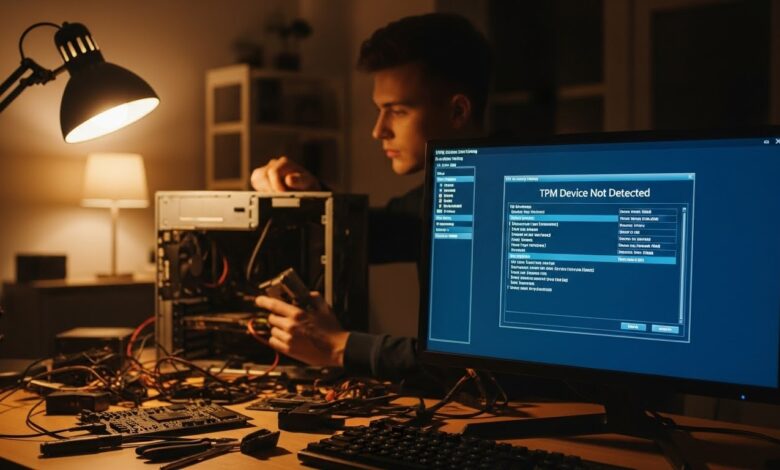
Trusted Platform Module (TPM) devices play a crucial role in hardware security for computers. They provide features such as secure boot and disk encryption, ensuring that your data remains protected. However, encountering an “alert TPM device is not detected” message can be concerning. This guide will help you understand what TPM is, why this alert occurs, and how to troubleshoot the issue.
What is a TPM Device?
A Trusted Platform Module (TPM) is a specialized hardware chip installed on your computer’s motherboard. It securely stores cryptographic keys, passwords, and digital certificates, making it essential for tasks such as:
- Disk encryption using Microsoft BitLocker
- Secure boot functions
- Digital rights management
- Software integrity checks
Common Reasons for the TPM Device Not Detected Alert
- TPM Disabled in BIOS/UEFI: One of the most common reasons for this alert is that the TPM functionality is turned off in your computer’s BIOS or UEFI settings.
- Outdated Drivers: If the TPM drivers are outdated, the operating system may not detect the device properly.
- Hardware Malfunction: In rare cases, the TPM chip may be physically damaged or malfunctioning.
- Operating System Issues: Corrupted operating system files can hinder the detection of the TPM device.
- Recent Hardware Changes: Installing new hardware components may conflict with the TPM’s functionality.
Troubleshooting Steps
1. Check BIOS/UEFI Settings
- Restart Your Computer: Access BIOS/UEFI settings by pressing a key (often F2, F10, DEL, or ESC) during startup.
- Locate TPM Settings: Look for a section labeled “Security,” “Security Devices,” or “TPM” in the BIOS menu.
- Enable TPM: If TPM is disabled, enable it, save changes, and exit BIOS.
2. Update TPM Drivers
- Device Manager: Open Device Manager (right-click on the Start menu, select “Device Manager”).
- Locate Security Devices: Expand the “Security devices” section, find “Trusted Platform Module.”
- Update Driver: Right-click on the TPM device and select “Update driver.” Choose the option to search automatically for updated driver software.
3. Run Windows Updates
- Settings: Open Windows Settings and navigate to “Update & Security.”
- Check for Updates: Click on “Check for updates” and install any available updates that may include fixes for TPM issues.
4. Run the TPM Management Tool
- Access TPM Management: Press
Windows + Rto open the Run dialog, typetpm.msc, and hit Enter. - Check TPM Status: The TPM Management window will display the status of the TPM. If it reports an issue, follow the instructions provided.
5. Reset TPM to Factory Defaults
- TPM Management Tool: In the TPM Management window, if the TPM is detected but not functioning, you may select the option to clear the TPM. Note that this will delete all keys stored on the TPM.
6. Check for Hardware Issues
If none of the above steps resolve the issue, consider checking for physical hardware problems:
- Inspect the Motherboard: If you’re comfortable with hardware, check the motherboard for any visible damage or loose connections.
- Consult a Professional: If you are unsure or uncomfortable performing these checks, seek help from a professional technician.
Conclusion
Encountering the “alert TPM device is not detected” message can be frustrating, but with the right troubleshooting steps, you can often resolve the issue. By checking BIOS settings, updating drivers, and running system updates, you can restore full functionality to your TPM device. If problems persist, don’t hesitate to consult a professional for further assistance.