How to Stop Your Apple Music Subscription: A Step-by-Step Guide

If you’re looking to cancel your Apple Music subscription, whether to save money or explore other streaming options, the process is straightforward. This guide will walk you through the steps to stop your subscription on various devices, ensuring a hassle-free experience.
Why Cancel Your Apple Music Subscription?
There are several reasons someone might choose to cancel their subscription:
- Financial Concerns: Reducing monthly expenses can be a priority for many.
- Limited Usage: If you’ve found yourself not using the service as much as anticipated, it may be time to reconsider.
- Exploring Alternatives: You might be interested in trying other music streaming services that better suit your needs.
How to Cancel Your Apple Music Subscription
1. On iPhone or iPad
Follow these steps to cancel your Apple Music subscription directly from your device:
- Open Settings: Tap the Settings app on your iPhone or iPad.
- Tap Your Name: At the top of the Settings menu, tap your name to access your Apple ID settings.
- Select Subscriptions: Choose the “Subscriptions” option to view all your active subscriptions.
- Find Apple Music: Scroll through the list and select “Apple Music.”
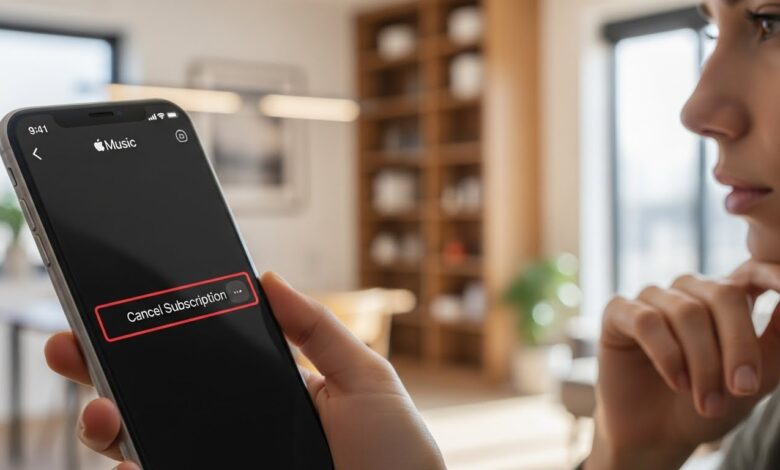
- Cancel Subscription: Tap “Cancel Subscription” and follow the prompts to confirm the cancellation.
2. On a Mac
If you use a Mac, you can cancel your subscription through the Music app.
- Open the Music App: Launch the Music app on your Mac.
- Click on Account: In the menu bar, click “Account,” then select “View My Account.”
- Sign In: Enter your Apple ID credentials if prompted.
- Manage Your Subscriptions: Scroll down to the “Settings” section and click “Manage” next to Subscriptions.
- Find Apple Music: Locate your Apple Music subscription and click “Edit.”
- Cancel Subscription: Click “Cancel Subscription” and confirm your cancellation.
3. On a Windows PC
To cancel your subscription through iTunes on a Windows computer:
- Open iTunes: Launch iTunes on your PC.
- Sign In: Make sure you are signed in with your Apple ID.
- Go to Account: Click on “Account” in the menu bar, then select “View My Account.”
- Settings Section: Scroll down to the “Settings” section and click on “Manage” next to Subscriptions.
- Find Apple Music: Select your Apple Music subscription and click “Edit.”
- Cancel Subscription: Click “Cancel Subscription” and confirm the cancellation.
4. Using the Apple Music App on Android
If you’re using Apple Music on an Android device, follow these steps:
- Open Apple Music App: Launch the Apple Music app on your Android device.
- Tap the Menu Icon: Tap the three vertical dots in the upper-right corner.
- Select Account: Go to “Account” and then choose “Manage Membership.”
- Cancel Subscription: Tap “Cancel Subscription” and follow the on-screen instructions to complete the process.
After Cancelling Your Subscription
- Access Until the End of Billing Cycle: After cancelling, you will still have access to Apple Music until the end of your billing cycle.
- Recovering Your Subscription: If you decide to re-subscribe later, you can easily restore your account without losing your saved playlists and preferences.
Conclusion
Cancelling your Apple Music subscription is a simple process that can be completed on various devices. By following the steps outlined in this guide, you can stop your subscription hassle-free. Whether you’re exploring different services or simply reassessing your budget, you have full control over your subscriptions.