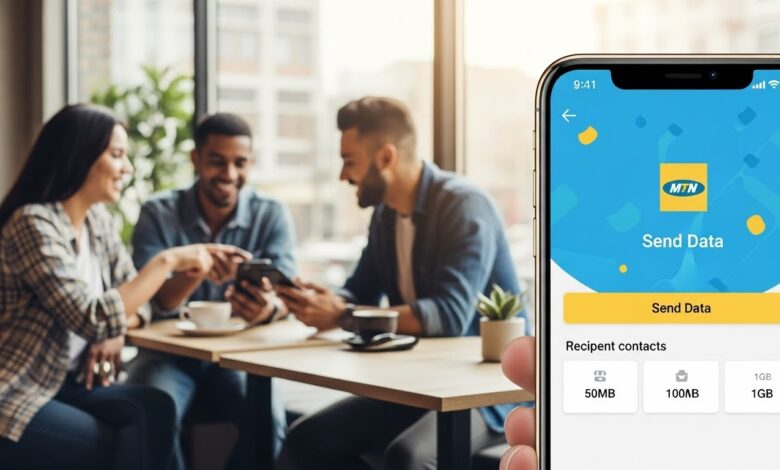
Transferring data between MTN users is a convenient way to ensure friends and family stay connected without interruptions. MTN offers an easy-to-use data transfer feature that allows you to share your data with other MTN subscribers. This guide will walk you through the steps to seamlessly transfer data from one MTN account to another.
Benefits of Transferring Data on MTN
- Stay Connected: Sharing data helps your loved ones stay online for essential tasks.
- Flexible Support: If a friend or family member runs out of data, you can quickly help them out.
- Convenience: The process is straightforward, making it easy to assist others whenever needed.
Eligibility for Data Transfer
Before initiating a data transfer, ensure you meet the following criteria:
- Active MTN Accounts: Both the sender and receiver must have active MTN numbers.
- Sufficient Data Balance: The sender must have enough data available to share.
- Registration: Users may need to register for data sharing services if they haven’t already done so.
Methods to Transfer Data from MTN to MTN
1. Using the MTN App
The MTN app is a convenient way to transfer data. Here’s how to do it:
- Download and Launch the MTN App: If you haven’t installed the app yet, download it from your app store and log in with your MTN number.
- Navigate to Data Sharing: On the home screen, look for the “Data Share” feature.
- Select the Amount of Data: Specify how much data you want to transfer and input the recipient’s MTN number.
- Confirm the Transfer: Review the details and tap on the “Share” button. You will receive a confirmation message once the transfer is successful.
2. Utilizing USSD Codes
For a quick transfer, USSD codes can be utilized. Here’s the process:
- Dial the Specific USSD Code: Enter
*131*2#and press the call button. This will bring up the data sharing menu. - Select the Transfer Option: Follow the on-screen prompts to choose the data transfer option.
- Input Recipient’s Number and Data Amount: Enter the number of the person you wish to share data with and specify the amount.
- Complete the Transfer: After confirming the details, submit your request. You will get an SMS confirmation once the data transfer is completed.
3. Through SMS
If you prefer text messaging, you can also transfer data via SMS:
- Compose Your Message: Write a text message in the format:
Share <amount> <recipient number>. - Send it to the Designated Number: Text this message to 123, which is MTN’s short code for data sharing.
- Wait for Confirmation: You should receive an SMS shortly confirming the transaction’s success.
Important Tips for Data Transfer
1. Be Aware of Limits
MTN may have specific limits on how much data you can transfer at once, as well as how many times you can transfer data within a certain period. Familiarizing yourself with these limits will prevent any unexpected issues.
2. Check for Fees
While transferring data is typically free, it’s a good idea to verify if there are any charges associated with the transaction.
3. Maintain Account Security
Always ensure that you are sharing data with trusted contacts to protect your account. Avoid sharing your account details or login information with anyone.
Conclusion
Transferring data from MTN to MTN is a seamless way to support your friends and family by keeping them connected. Whether you choose to use the MTN app, USSD codes, or SMS, the process is quick and straightforward. By following these steps and understanding the key points about data transfer, you can ensure that your loved ones stay online effortlessly.